Installation Instructions
Install the Outdoor Learning MApp as a Progressive Web App (PWA) for the best experience on any device.
Why Install the App?
- Faster access — launch instantly from your Home Screen or Dock.
- Full-screen mode — cleaner and more app-like experience.
- No browser address bar — more space for maps and content.
- Better performance — optimised caching for repeated use.
- Feels like a native app — without needing to visit an app store.
Follow the steps below to install the Outdoor Learning MApp on your device.
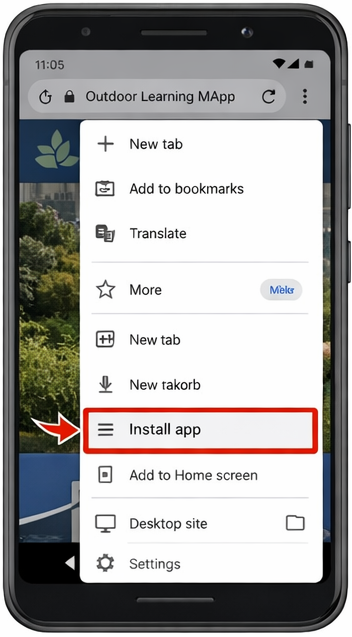
Android (Chrome, Edge, Samsung Internet)
- Open the site in Chrome.
- Wait a moment — an install prompt may appear at the bottom.
- If not, tap the menu (⋮) and select “Install app” or “Add to Home screen”.
- The app will be added to your Home screen and open in full-screen mode.
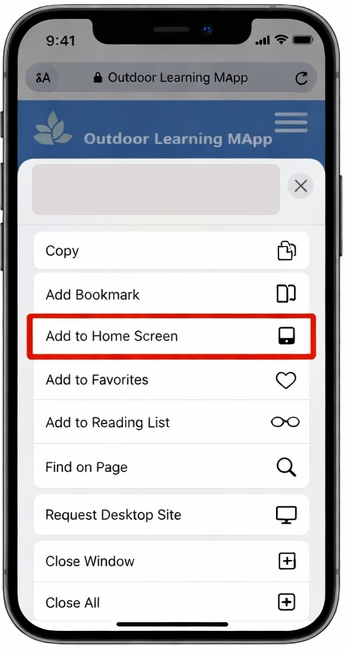
iOS / iPadOS (Safari only)
- Open the site in Safari.
- Tap the Share icon (the box with an up arrow).
- Scroll down and tap “Add to Home Screen”.
- Tap Add — the app appears on your home screen.
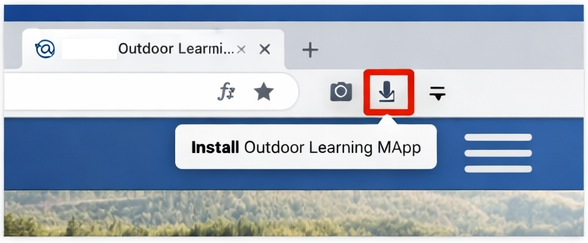
macOS / Windows – Chrome
- Open the site in Chrome.
- Click the install icon in the address bar (if visible).
- Or click the ⋮ menu > “Install app”.
- The app installs like a desktop application.
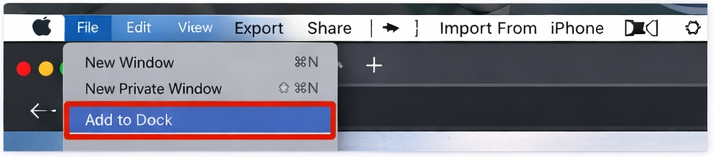
macOS – Safari (Sonoma or later)
- Open the site in Safari.
- Go to File > “Add to Dock”.
- Name the app and confirm — it’s added to Launchpad and Applications.
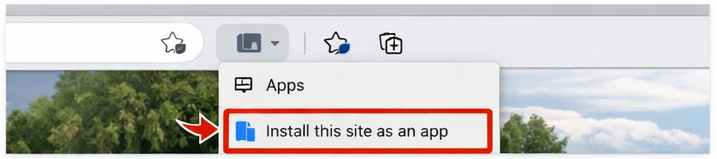
Windows / macOS – Microsoft Edge
- Open the site in Edge.
- Click the install icon in the address bar, or
- Go to ⋯ menu > Apps > “Install this site as an app”.
Quick Summary
| Platform | Browser | How to Install |
|---|---|---|
| Android | Chrome | Prompt or Menu → Install |
| Android | Edge, Samsung | Menu → Add to Home Screen |
| iOS / iPadOS | Safari | Share → Add to Home Screen |
| macOS / Windows | Chrome | Install icon or Menu → Install |
| macOS | Safari | File → Add to Dock |
| macOS / Windows | Edge | Install icon or Apps menu |